
 Have you ever felt that your Windows applications look a little boring and are missing that touch of visual style and creativity? I assume you have, so I’m going to show you how you can paint a gradient background for your Windows Forms. It might not sound like much but this goes a long way in making your interface more appealing to the end users of your application.
The .NET framework includes a class called System.Drawing.Drawing2D.LinearGradientBrush which is designed specifically for painting gradients. It accepts as parameters the coordinates of the object to paint, the two colours used to produce the gradient, and the angle of the gradient.
Now, let’s use this class to paint a gradient on our Windows Form.
We begin by overriding the form’s OnPaintBackground method like this:
protected override void OnPaintBackground(PaintEventArgs e)
{
}
This method will fire when the form is to be painted so it is the perfect event for us to paint our gradient in. Now that we have overridden the OnPaintBackground method we must create an instance of LinearGradientBrush and give it some parameters for our gradient. We must also paint the form using the Graphics‘ object FillRectangle method. The code for this is below:
protected override void OnPaintBackground(PaintEventArgs e)
{
    using (LinearGradientBrush brush = new LinearGradientBrush(this.ClientRectangle,
                                                               Color.Gray,
                                                               Color.Black,
                                                               90F))
    {
        e.Graphics.FillRectangle(brush, this.ClientRectangle);
    }
}
Now to explain what is happening here – we are creating an instance of LinearGradientBrush and wrapping it inside the using keyword so that the object is automatically disposed of when the method exists. As the first parameter we are passing this.ClientRectangle which specifies the bounds of our form, which are also the bounds of our gradient. Next we are passing the colours to be used to create the gradient – Color.Gray, and Color.Black. With the fourth parameter we are telling the brush to paint the gradient at 90 degrees – i.e. vertical. And finally we are using the Graphics object of the form to actually paint the form using the brush we just created.
Now if you run the application you will get a form which looks like this:
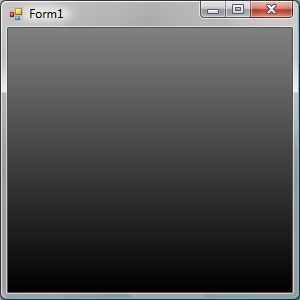
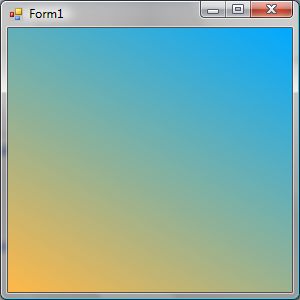
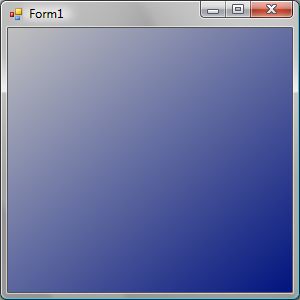
Obviously by changing the values of the parameters you pass to LinearGradientBrush you can create many different effects.
There is one little problem with this code. If you try and resize the form, the gradient will not adjust to the new size. This problem is easily fixed though. Within your Form_Resize event call this.Invalidate() and everything will work fine. This invalidates the entire surface of the form and forces it to be redrawn.
private void Form1_Resize(object sender, EventArgs e)
{
    this.Invalidate();
}
And that’s it. You now know how to make your forms look a little better by using gradients.
I hope you enjoyed this article. Happy painting and stay tuned for more soon.
Dave
Great example! thanx for sharing !!
Just what I was looking for. Nice and easy. Thanks, Dave.
One additional question. I’ve got an MDI application I’m writing. The parent has no background to paint but the child form has the gradient setup that you tell us about.
My problem is that when I minimize the parent form (which contains the child painted with the gradient) and restore it, the child’s background is gone. And there’s just two intersected red lines connecting opposite corners of the child’s rectangle.
Sure there’s some specific event handler for this but can’t quite figure it out.
Hi Brandon,
This problem also happens with the example in this article. The issue is that the dimensions of
this.ClientRectangleare zero right after you minimize a form. You can easily work around this by wrapping your code in a try/catch block or else by checking thethis.ClientRectangledimensions like this:protected override void OnPaintBackground(PaintEventArgs e) { if (this.ClientRectangle.Width > 0 && this.ClientRectangle.Height > 0) { using (LinearGradientBrush brush = new LinearGradientBrush(this.ClientRectangle, Color.FromArgb(192, 192, 192), Color.FromArgb(0, 19, 127), 50F)) { e.Graphics.FillRectangle(brush, this.ClientRectangle); } } }Hope this helps.
Thanks a lot! You saved me big time. 🙂 It’s simply awesome…
it is giving error on minimize and resize also
Error is: Rectangle ‘{X=0,Y=0,Width=0,Height=0}’ cannot have a width or height equal to 0.
please reply
I’m experiencing a similar error. Have you figured out how to solve it? Thanks in advance.
if we apply
if (this.ClientRectangle.Width > 0 && this.ClientRectangle.Height > 0)
it doesnt paint properly in form
sorry for bad english
or comes when form windows state is maximized
Kudos for a really easy to understand intro to the use of LinearGradientBrush. I spent about 2 days frustrated in my attempts at Googling for a simple example like this. I finally came across yours & it definitely fits the bill. It’s certainly not as complicated as all those other examples make it out to be. Cheers!
Thank you so much!
P.S. One needs to add the instruction ResizeRedraw = true; in order to keep the same design after resizing the window (See also http://www.csharp-examples.net/redraw-control-on-resize/)
thanks sir
this code is working properly
Nice lesson But how can i do this with click event?
Thanks Dave your post is useful.
I also refer very helpful and useful article about Gradient background in c#.
Please visit this helpful article
http://www.mindstick.com/blog/161/Gradient%20background%20in%20c#.VfvR2Jc0Xcc
http://www.daveoncsharp.com/2009/09/how-to-paint-a-gradient-background-for-your-forms/
thank you!