
 As a software developer, how many times have you needed to store your application’s settings in a file, be it an ini file, an xml file, or maybe even a plain text file? It is a common requirement for many developers, and with C# it is really simple to do.
The Microsoft.NET Framework 2.0 introduced a new item called the Settings File. This file is added to your project by default and can be found under the Properties folder within Visual Studio’s Solution Explorer. The default name for this file is Settings.settings and it contains an easy to use interface for adding your application settings at design time.
Settings File Properties
A settings file contains the following four properties:
- Name – The Name property is the name that is used to access the value of the setting through your code at runtime.
- Type – The Type is the .NET Framework type of the setting like for example
bool,decimal,int, andstring. It even supports more complex types such asSystem.Drawing.Color, orSystem.Guid. - Scope – This property specifies how a setting can be accessed at runtime. It can be one of two values – either User or Application. The main difference between these two is that Application settings are read-only at runtime, while user settings are not. User settings should be used to load/save user preferences such as for example colour settings or window positions. Application settings should be used to store settings required for your application to run such as connection strings for example.
- Value – The value property is the actual value that will be returned when accessing the setting at runtime.
Creating a Settings File
We are going to create a settings file with three settings – TextColour, Width, and Height. Open the Settings.settings file and add these three properties as shown below:
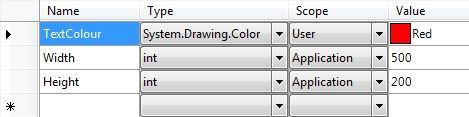
The TextColour property’s scope is set to User, therefore we will be able to update this property’s value through code at runtime. The other two properties are read-only.
Using the Settings File through Code
Create a simple form which looks like the below image with two buttons and a label for the text.
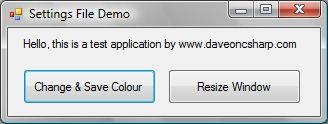
In the Click event for the ‘Resize Window’ button we are going to add some code which reads the Width and Height settings and applies them to our form:
private void btnResize_Click(object sender, EventArgs e)
{
    // Load the width and height from the settings file
    // and assign them to the form.
    this.Width = Properties.Settings.Default.Width;
    this.Height = Properties.Settings.Default.Height;
}
Now in the Click event for the ‘Change & Save Colour’ button we are going to add code which sets the label’s text colour to our TextColour property in the settings file. Then we are going to update the TextColour property with a new colour – which is blue. The code for this is below:
private void btnChangeColour_Click(object sender, EventArgs e)
{
    // Set the label's text colour to the colour
    // we have in the setting file (red)
    lblText.ForeColor = Properties.Settings.Default.TextColour;

    // Set the colour in the settings file to blue.
    Properties.Settings.Default.TextColour = Color.Blue;
    Properties.Settings.Default.Save();
}
If you run the application we just created and click on both buttons you will end up with a form which looks similar to this:
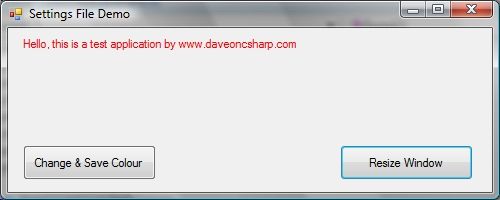
As you can see the setting we loaded from our settings file have been applied to our form. If you run the application again and click the ‘Change & Save Colour’ button again the text will turn blue instead of red.
As you can see, storing application and user settings is extremely easy and straight forward to implement with C# and .NET 2.0.
I hope you found this article interesting. Stay tuned for more real soon.
Dave
Hi Dave,
Many thanks for this article, its very useful. specially the way you have explained.
Now I am going to read all your articles.
Thanks.
Dear Dave,
I have seen some great articles on C# on your website, it’s simple and easy to understand, so good work for making it so simple.
I don’t see that much resource on C# Accounting, if you can help me with that, is there any module available online, or from somewhere it can be purchased?.
please let me know if you have such information.
Thanks,
Fawad Naseer.
I stumbled across this article while searching for an answer to a somewhat different question. You may know the answer: When I create a new project in Visual Studio and open the settings file to define application configuration settings, the default Scope is always “User”. Is there any way to make Scope default to “Application”?
Thanks
Thanks for this article! I’m a seasoned java developer but brand new to coding C# and using Visual Studio – and this guide was just what I was looking for to answer some of the questions I had about the app.config file. Appreciate it!
thanks for the great article
I was stuck while creating a setting form for my c# card game. The Microsoft tutorials just weren’t cutting. Many thank this saved me many sleepless nights. 🙂